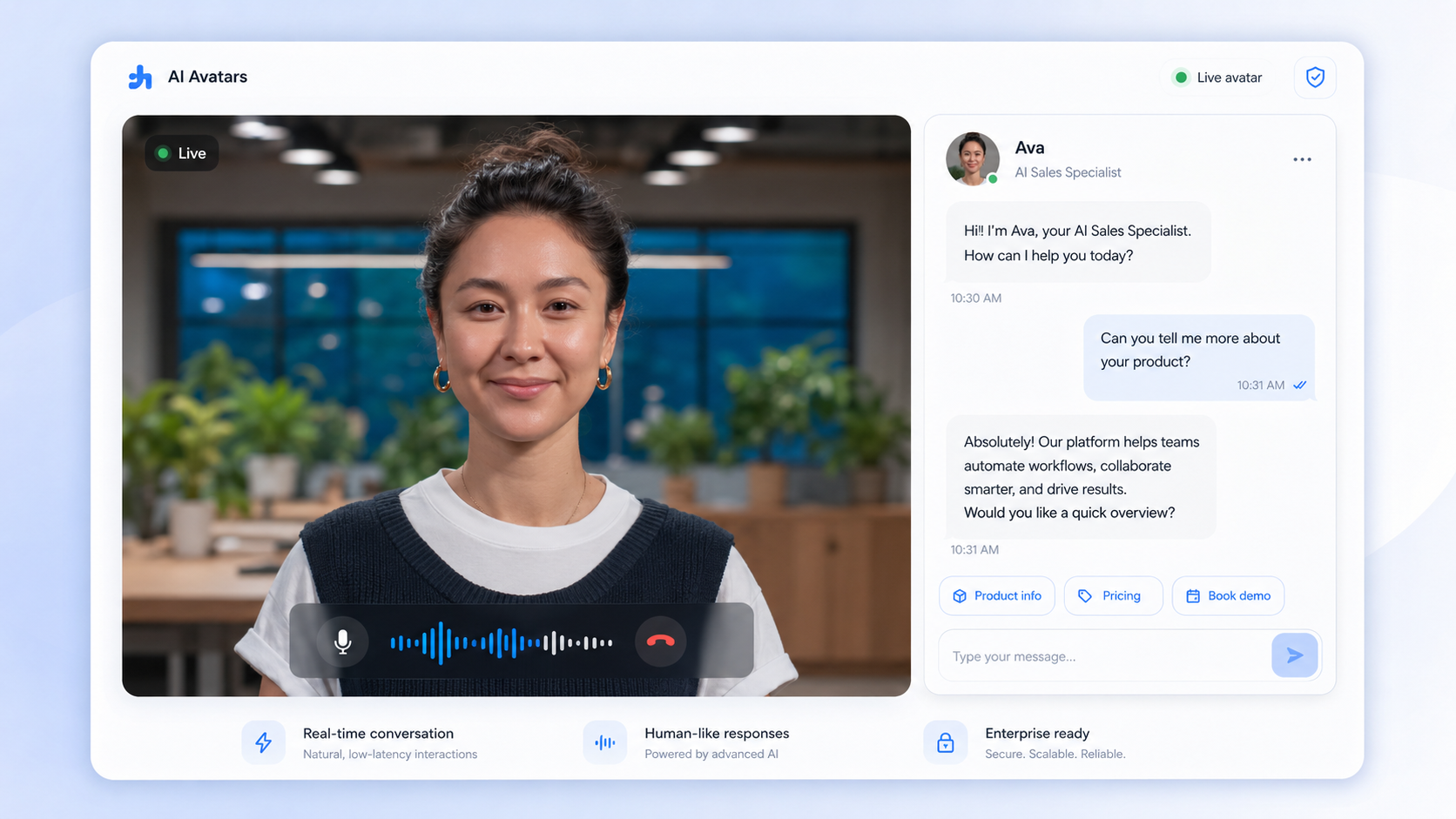
Your onboarding video works great in English, and now the product is launching in five new markets before quarter end. Booking a voice actor and a lip-sync editor for each language isn't a quarter-end task, it's a quarter-long one. AI video translation collapses that into a per-second API call that handles the translation, the dubbed voice, and the lip sync together.
Step 1. Pick your source video and target languages
Start with a finished source video with clear, isolated speech, background music and heavy noise make automatic translation and dubbing less reliable. DreamAPI's Video Translate 2.0 supports 25+ languages, so before submitting anything, decide which markets you're localizing for first rather than translating into every supported language up front.
Tip: prioritize by audience size or launch date, since every additional language is a separate, billable translation pass on the same source video.
Step 2. Submit the video for translation and dubbing
Video Translate 2.0 bundles three things into one pass: translating the spoken content, generating a dubbed voice track in the target language, and adjusting lip movement to match the new audio. Because dubbing and lip sync are handled together, you don't need to chain a separate lip-sync call after the translation finishes.
Tip: submit each target language as its own job so you can review and approve languages independently instead of waiting for a full batch to finish before checking any of them.
Step 3. Review the dubbed, lip-synced output
Automatic translation handles general speech well but can mishandle brand names, product terms, or names of people, so review each output before publishing. Check that the dubbed pronunciation of your product name and any named individuals sounds right in context, since these are the details a native-language reviewer catches fastest.
Tip: keep a short glossary of brand and product terms per language so reviewers have a fast reference instead of relitigating pronunciation decisions on every video.
Step 4. Localize any on-screen text separately
Video Translate 2.0 handles spoken audio and lip sync, not burned-in captions, lower-thirds, or on-screen graphics. If your source video has text baked into the frame, plan a separate localization pass for that text, or design the source video with on-screen text as an overlay you can swap per language instead of hard-coding it into the footage.
What AI video translation costs
Video Translate 2.0 prices at 3 credits per second of source video, per target language. Credit packages run from $60 for 8,000 credits ($0.0075/credit) up to $1,000 for 222,000 credits at 40% off ($0.0045/credit).
Video lengthCredits (1 language)Cost (1 language)60 seconds180 credits$0.81–$1.355 minutes (300s)900 credits$4.05–$6.75
Cost scales with each additional language, since every target language is its own translation and dubbing pass. Translating a 2-minute (120-second) product video into 5 languages costs 120 × 3 × 5 = 1,800 credits, about $8.10 to $13.50 total, with no subscription required.

Pros and cons
Pro: translation, dubbing, and lip sync happen in one call instead of three separate tools.
Pro: pay-per-second pricing scales with actual video length and language count, with no subscription commitment.
Con: on-screen text and graphics aren't translated automatically and need a separate localization step.
Con: brand names and product terminology need a human review pass, since automatic dubbing can mispronounce terms it hasn't seen before.