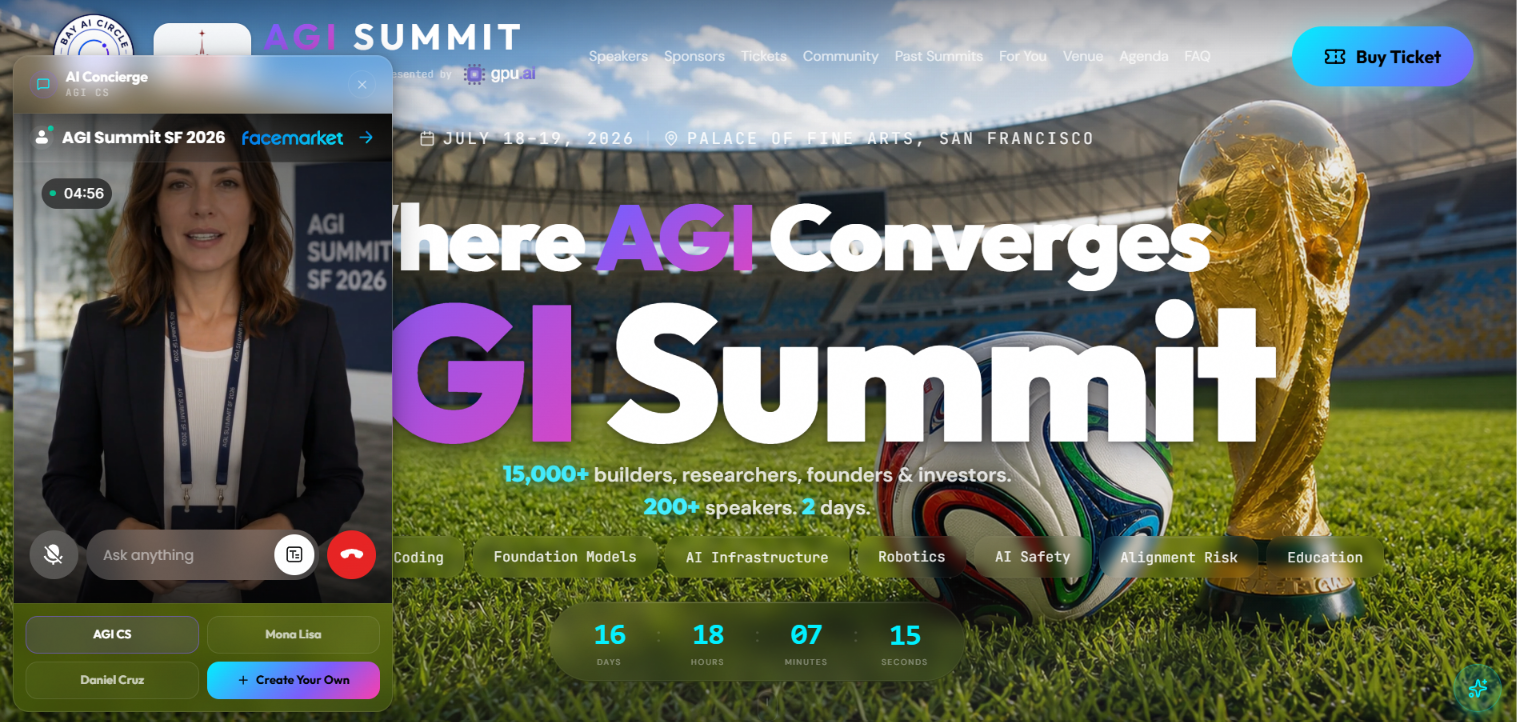
Building a digital human used to mean booking a studio, hiring an actor, and waiting days for the edit. That is no longer true. With FaceMarket, you can create a live chat avatar in your browser and have it talking to your users the same afternoon. A live chat avatar is a real-time digital human that listens, understands, and answers out loud. This guide shows you how to build one from start to finish, then embed it on your own site.
What is a live chat avatar?
A live chat avatar is a real-time digital human that holds a spoken conversation with your users. Unlike a pre-recorded video avatar, which plays a fixed clip, a live chat avatar listens to each question and answers on the spot, using an AI model for the response and a synthetic voice to speak it. You can give it your own face by uploading a video, or use a ready-made one, and you can train it on your own content so it answers from your material instead of guessing.
How to create a live chat avatar in 4 steps
The whole process runs on a single FaceMarket page, split across three tabs: Profile, Abilities, and Knowledge. Here is each step.
Step 1. Choose your avatar
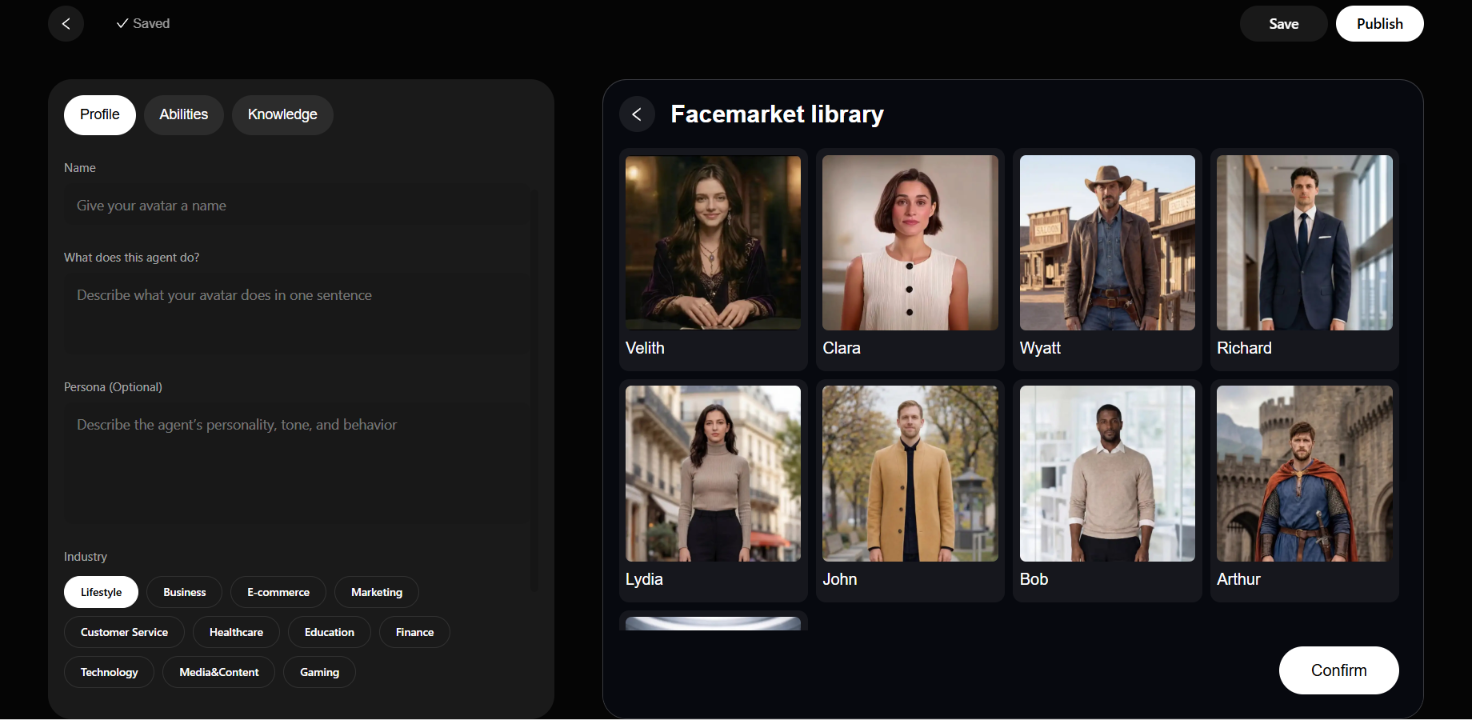
Start with the avatar. You have two options, and neither needs a camera crew. To use a specific person, such as a founder or a brand spokesperson, create your own avatar by uploading a video of them. To launch faster, choose a ready-made avatar from the Facemarket library, which includes options such as Velith, Wyatt, and Richard, each already set up to move and speak. Select an avatar, confirm, and it loads as a live video feed with a start talking button.
Step 2. Set the profile and persona
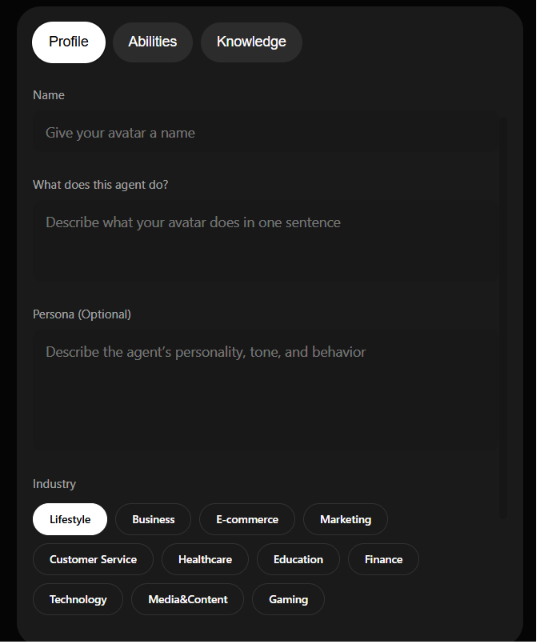
Open the Profile tab and tell the avatar who it is. There are three fields: a name, a one-sentence description of what it does, and an optional persona. The persona has the biggest effect on how the avatar behaves. A generic instruction such as "be concise, friendly, and focus on accurate answers" produces a generic assistant, while specific direction on tone, formality, and topics to avoid produces an avatar that holds a focused conversation. You can also assign an industry and a role, from customer support to researcher to coach, to categorize the avatar.
Step 3. Pick the model and voice
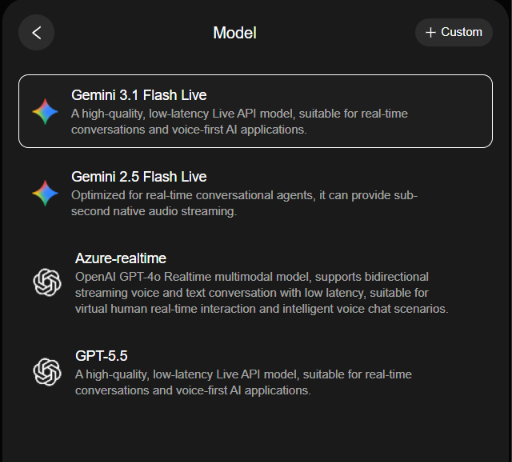
The Abilities tab controls the response engine and the voice. FaceMarket offers four models built for real-time conversation, plus a custom option for advanced setups. The model you choose affects how natural the avatar sounds and how quickly it replies. In the same tab, select a voice, write a behavior prompt, and enable a greeting so the avatar opens the conversation instead of waiting for the first message.
Step 4. Add knowledge, then publish and embed
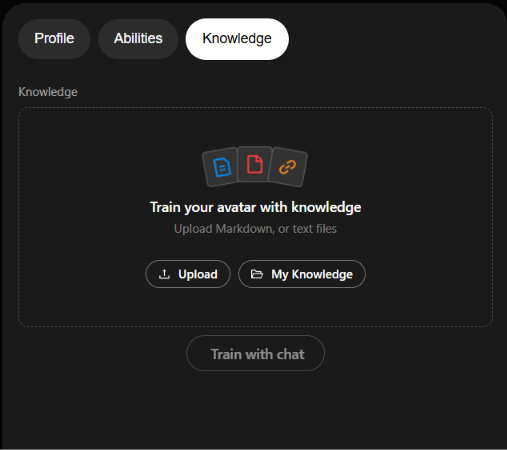
Open the Knowledge tab to make the avatar useful instead of just conversational. You can upload markdown or text files, connect a saved knowledge folder, or train the avatar directly through chat. Load it with your product documentation, FAQs, and onboarding material, and it answers from your own content. When it is ready, publish with one click and embed it on your site. Embedding takes an SDK call or an iframe, so the avatar runs on a landing page, a support widget, or a product demo without a custom rendering pipeline.
Four real-time models built for live conversation
The model behind a live chat avatar decides how natural it sounds and how fast it responds. FaceMarket gives you four to choose from, each tuned for real-time conversation:
Gemini 3.1 Flash Live: a high-quality, low-latency model for real-time, voice-first conversation.
Gemini 2.5 Flash Live: optimized for conversational agents, with sub-second native audio streaming.
Azure-realtime: OpenAI's GPT-4o Realtime model, with bidirectional low-latency voice and text.
GPT-5.5: a high-quality, low-latency model for real-time conversation and voice-first applications.
There is also a custom option when a specific setup calls for it. If you are not sure which to use, start with the default and switch later; the choice does not affect the rest of your configuration.
Where to use a live chat avatar
A live chat avatar fits the roles that are hard to staff around the clock:
Sales support that answers questions outside business hours.
An e-commerce advisor that walks a shopper through product images.
An education avatar that bridges a language gap in a classroom.
A recruiting avatar that gives live commentary during an event.
Each of these uses the same three tabs, Profile, Abilities, and Knowledge, filled in with different inputs. You do not build a new product for each job, you configure the same one differently.
How to embed a live chat avatar on your website
FaceMarket uses a two-step deploy model: configure the avatar, then embed it. Embedding works through an SDK or an iframe, so the avatar you built drops straight into your page. You are not exporting a video file to download and host somewhere. You get a live avatar served from its own endpoint, and your page connects to it. That means the same avatar can sit on a marketing landing page, inside a customer support widget, or behind a product demo, and update centrally whenever you change its knowledge or persona.
Start building your live chat avatar today
You can go from a blank project to a working live chat avatar in one sitting: choose an avatar, set its persona, pick a model and voice, add your knowledge, and publish. Prioritize the persona and knowledge over the appearance, because those are what make the avatar genuinely useful.
Live chat avatar FAQ
What is a live chat avatar?
A live chat avatar is a real-time digital human that listens to a user and answers out loud, using an AI model for the response and a synthetic voice to speak it. It holds a live conversation rather than playing a pre-recorded clip.
How do I create a live chat avatar?
On FaceMarket, you create one on a single page in four steps: choose or upload an avatar, set its profile and persona, pick a model and voice, and add your knowledge before publishing.
Can I turn my own video into a live chat avatar?
Yes. In the create flow you can upload your own video to build an avatar of a specific person, such as a founder or spokesperson, instead of using a library avatar.
Which AI models can a live chat avatar use?
FaceMarket offers four real-time models: Gemini 3.1 Flash Live, Gemini 2.5 Flash Live, Azure-realtime, and GPT-5.5, plus a custom option for advanced setups.
Can a live chat avatar answer questions using my own content?
Yes. The Knowledge tab lets you upload markdown or text files, connect a saved knowledge folder, or train the avatar through chat, so it answers from your own material.
How do I add a live chat avatar to my website?
After you publish, FaceMarket gives you an SDK or an iframe to embed the avatar. It runs from its own endpoint, so you place it on a landing page, a support widget, or a product demo without building a rendering pipeline.
What is the difference between a live chat avatar and a video avatar?
A video avatar plays a fixed, pre-rendered clip. A live chat avatar responds in real time, generating a new answer for each question and speaking it through a synthetic voice.
How much does a live chat avatar cost?
Pricing depends on how much you use it and which model you run. Check FaceMarket's current pricing for the exact rates before you launch.